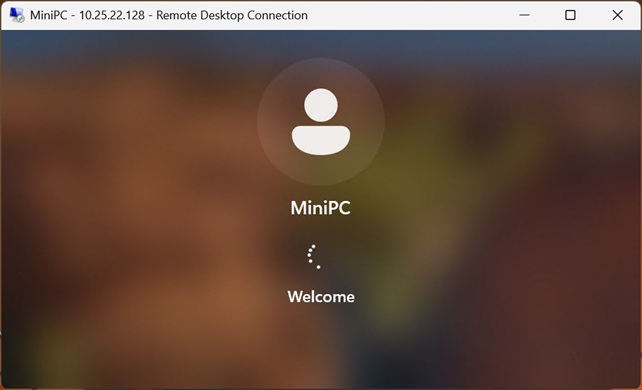
Installation Steps
-
Download and install the credential provider on your target Windows computer.
WWPassCredentialProviderSetup -
Install the WWPass Key app on your mobile phone.
 Get it on Google Play
-
Log in to winlogon.wwpass.com by scanning the QR code with your phone using the WWPass Key app. Your user account is created automatically on your first login.
 Download on the App Store
On the account page, enter your Windows credentials:
Select an account type (Local/Microsoft, Azure, or Active Directory) and provide:
- For a local account — your username and password
- For a personal account — your Microsoft email address and password
- For a company Active Directory account — the domain name, username, and password
- For an Azure account — the email you use to log in to company resources and your password
If needed, use the built-in password generator to create a truly random, strong password.
Now it is time to log in.
On the Windows login screen, select the WWPass tile in the lower-right corner.
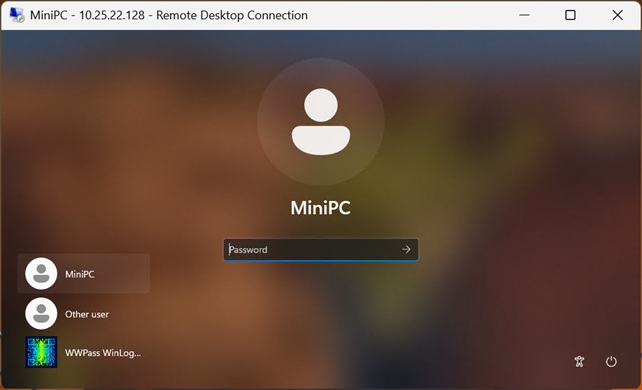
A QR code appears in the center of the screen.
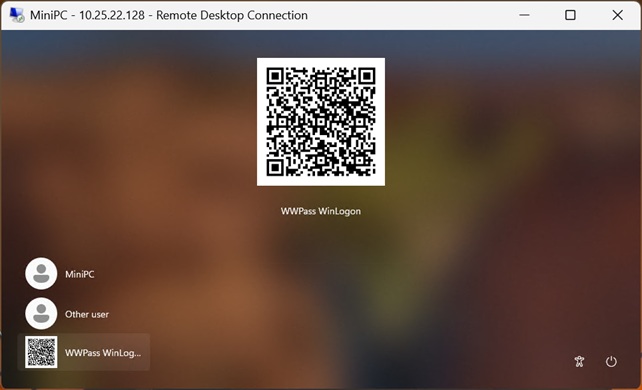
Scan the QR code with the WWPass Key app. The account username shown below the QR code confirms that the data was retrieved from the winlogon.wwpass.com server and successfully decrypted.
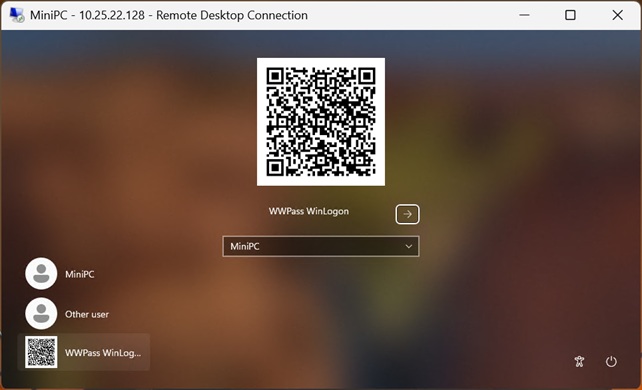
Simply press Enter and you are in.